
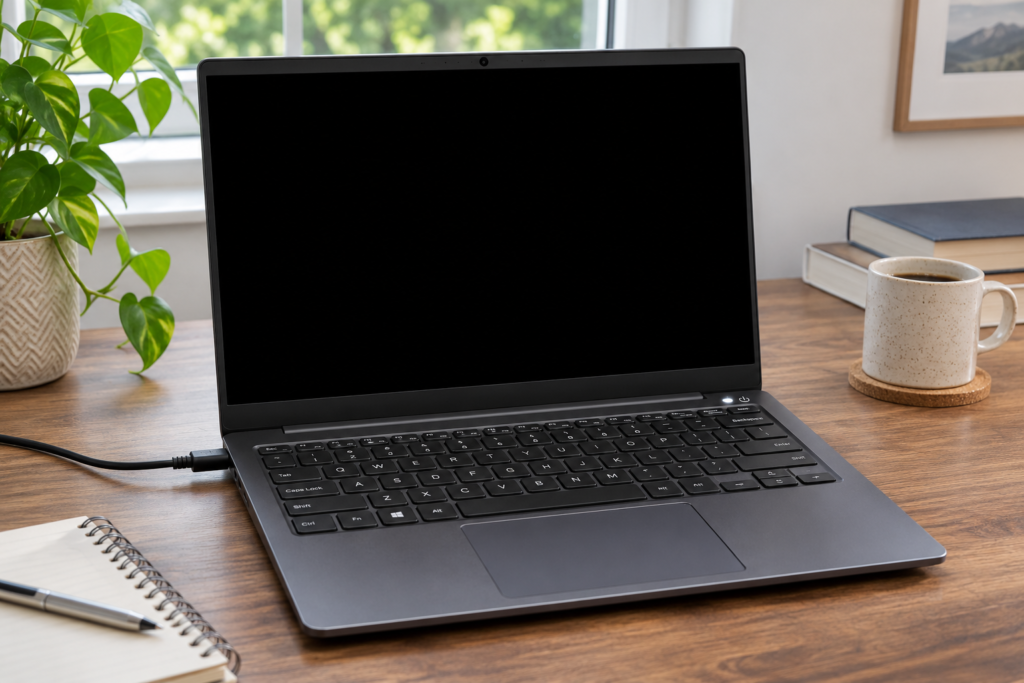
A laptop with no lights or fan noise needs different checks from a laptop that powers on but shows a blank display. Start by observing what changes when you press the power button.
If there are no signs of power
Test the wall outlet, then check that the original or a known compatible charger is connected firmly. Disconnect docks, USB devices, and external displays. For a USB-C laptop, check the manufacturer’s recommended adapter wattage and which port accepts charging. A phone charger may fit but deliver too little power.
If the fan runs or the lights come on
Turn up the brightness and look for a startup logo or a faint image. If available, test a known working external display with a compatible cable. A picture on the external screen narrows the problem, although it does not identify the exact part at fault. Write down any blinking light pattern or on-screen error.
If the laptop repeatedly turns off
Note whether it shuts down instantly, only on battery, or after it gets warm. A recent spill, burning smell, or swollen case is a reason to disconnect power and stop testing. If important files are stored on the device, mention that before anyone resets or reinstalls the operating system.
Bring the clues with you
The model number, charger, and a photo of the error can save time. Mention whether the laptop works with or without the charger and whether the problem started after a drop or update. See laptop repair in Houston for help with startup and charging problems.